How to Choose Accounting Software for Your Small Business in 2026
Learn how to choose accounting software for your small business. Compare bank feeds, invoicing, payroll, tax rules, integrations and the real cost in 2026.

So, you’ve decided your spreadsheet (or shoebox of receipts) isn’t cutting it any more, and it’s time for proper accounting software.
Then you start looking. QuickBooks, Xero, FreshBooks, Zoho Books, Wave, Sage. Five pricing plans each. Words like double-entry, reconciliation, accounts payable and COGS. Suddenly a simple decision feels like an exam you didn’t revise for.
Don’t worry.
You don’t need the software with the most features. You need the one that handles what your business actually does, works in your country, and still fits your budget once the discount ends.
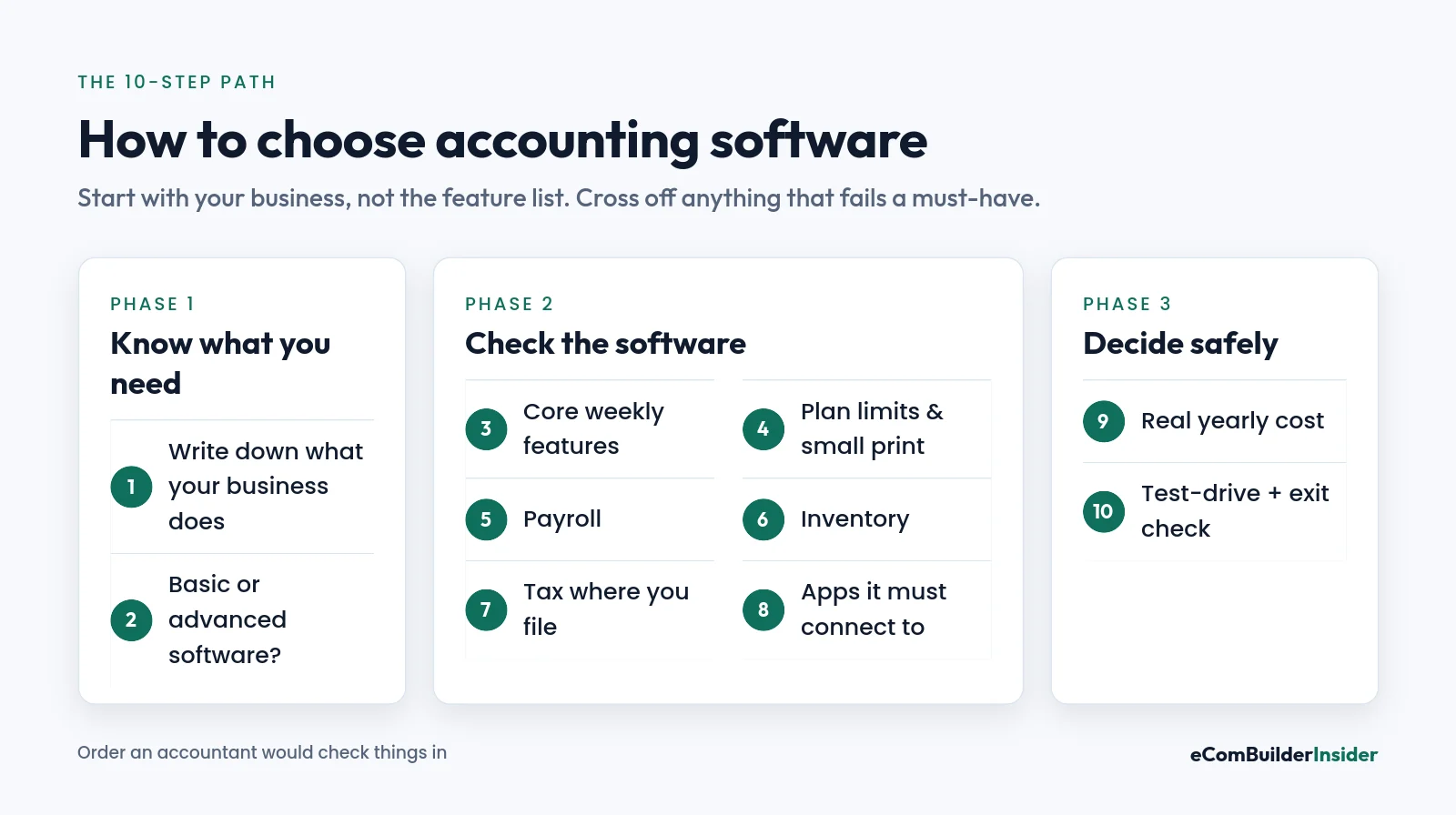
I’m an accountant, and this is the exact order I’d check things in if I were choosing for my own small business today. Ten steps, plain English, no sales pitch.
Quick answer: the 6 things to check first
- It handles the tax rules where you file (sales tax, VAT, GST, payroll filings).
- Your bank connects to it, and automatic bank feeds are included in the plan you can afford.
- The plan’s limits fit you: invoices, bills, clients and users.
- It covers payroll or inventory if (and only if) you need them.
- The apps you already use (Stripe, Shopify, PayPal, payroll) connect without double entry.
- The normal yearly price, plus add-ons, still works after the promo ends.
If a platform fails one of those six, cross it off. Everything else in this guide is about choosing between the ones that pass.
How I checked this
Prices, plan limits and tax dates were checked on official pages on 1 November 2026. Plan examples use US editions unless I say otherwise. Prices change often, so confirm on the provider’s site before you buy. This is general information, not tax advice. Here’s how I test software.
Why Getting This Right Matters More Than the Monthly Price
Accounting software looks like a small monthly bill. Choose the wrong one and you pay for it with your time instead.
- Your bank won’t connect, so you type in every transaction by hand.
- Your online store doesn’t sync, so you enter sales twice and still can’t match the payouts.
- Your accountant can’t get the reports they need, so year-end costs you more.
- The plan has a cap you didn’t notice, like 20 invoices a month, and you hit it in week three.
- Switching later is painful. Moving years of history to a new system is a job you only want to do once.
The good news? Every one of those problems is easy to spot before you pay, if you know where to look. That’s what the next ten steps are for.
Step 1: Write Down What Your Business Actually Does
Before you open a single pricing page, make a short list of what your business does with money every week.
Grab a notepad and answer these. Honest answers only, not “one day I might…”.
- What do you sell? Services, physical products, or both?
- Where do you file taxes? Country, and in the US, which states.
- Do you charge sales tax, VAT or GST?
- How many invoices do you send a month? And how many supplier bills do you pay?
- Do you have employees or contractors? How many, and where?
- Do you keep stock? One location or several?
- Do you deal in more than one currency?
- Who needs access? You, a partner, a bookkeeper, your accountant?
- Which apps must connect? Your bank, Stripe, PayPal, Square, Shopify, Amazon, a payroll provider, a CRM.
- What can you comfortably spend each month?
Now sort every answer into three buckets: must-have, nice-to-have and not needed.
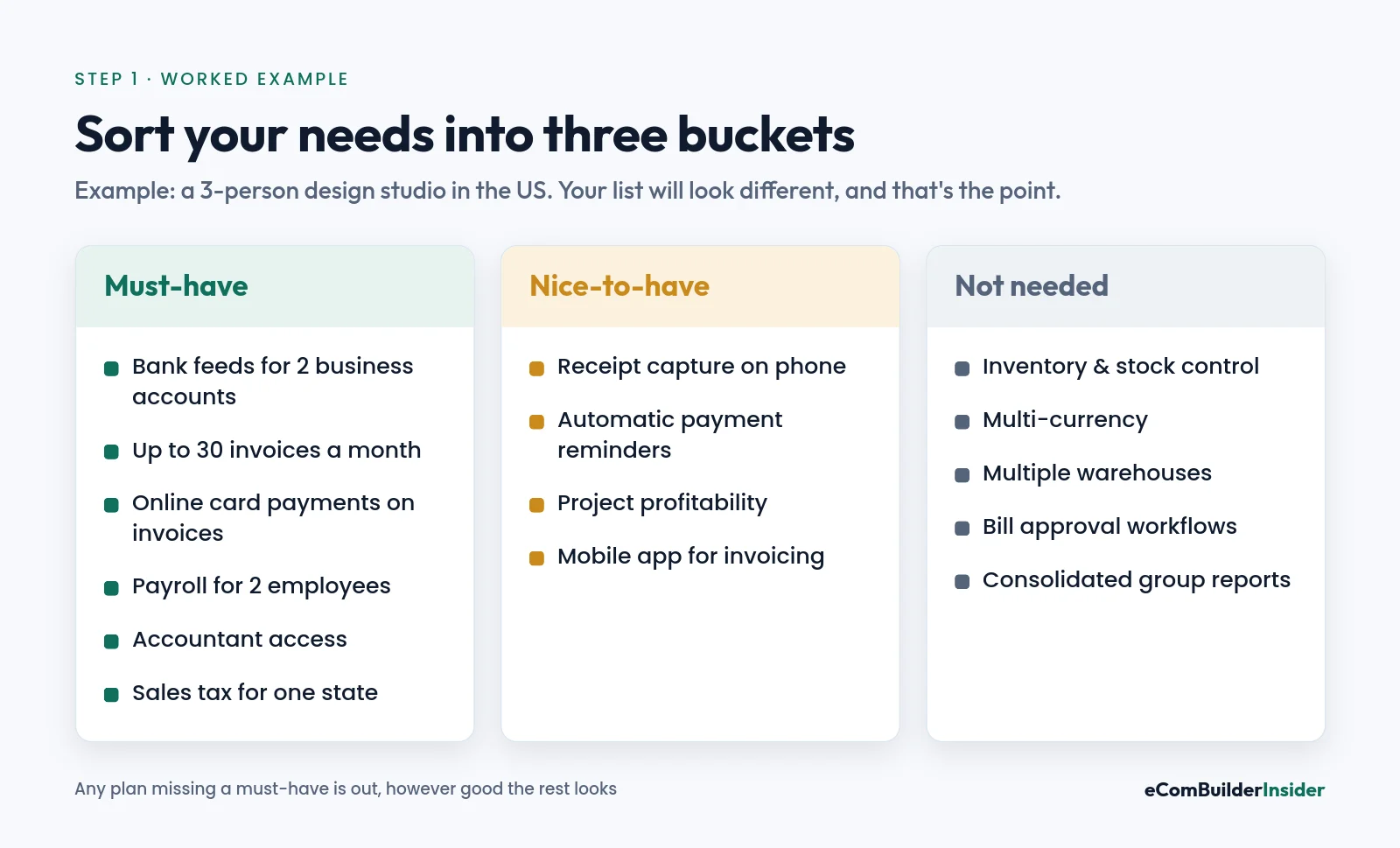
That list becomes your filter. If a plan misses a must-have, it’s out, however good the rest looks.
And if your accountant or bookkeeper already works in one platform, write that down as well. It isn’t a must-have, but it can save you real money at year-end.
Step 2: Work Out Whether You Need Basic or Advanced Software
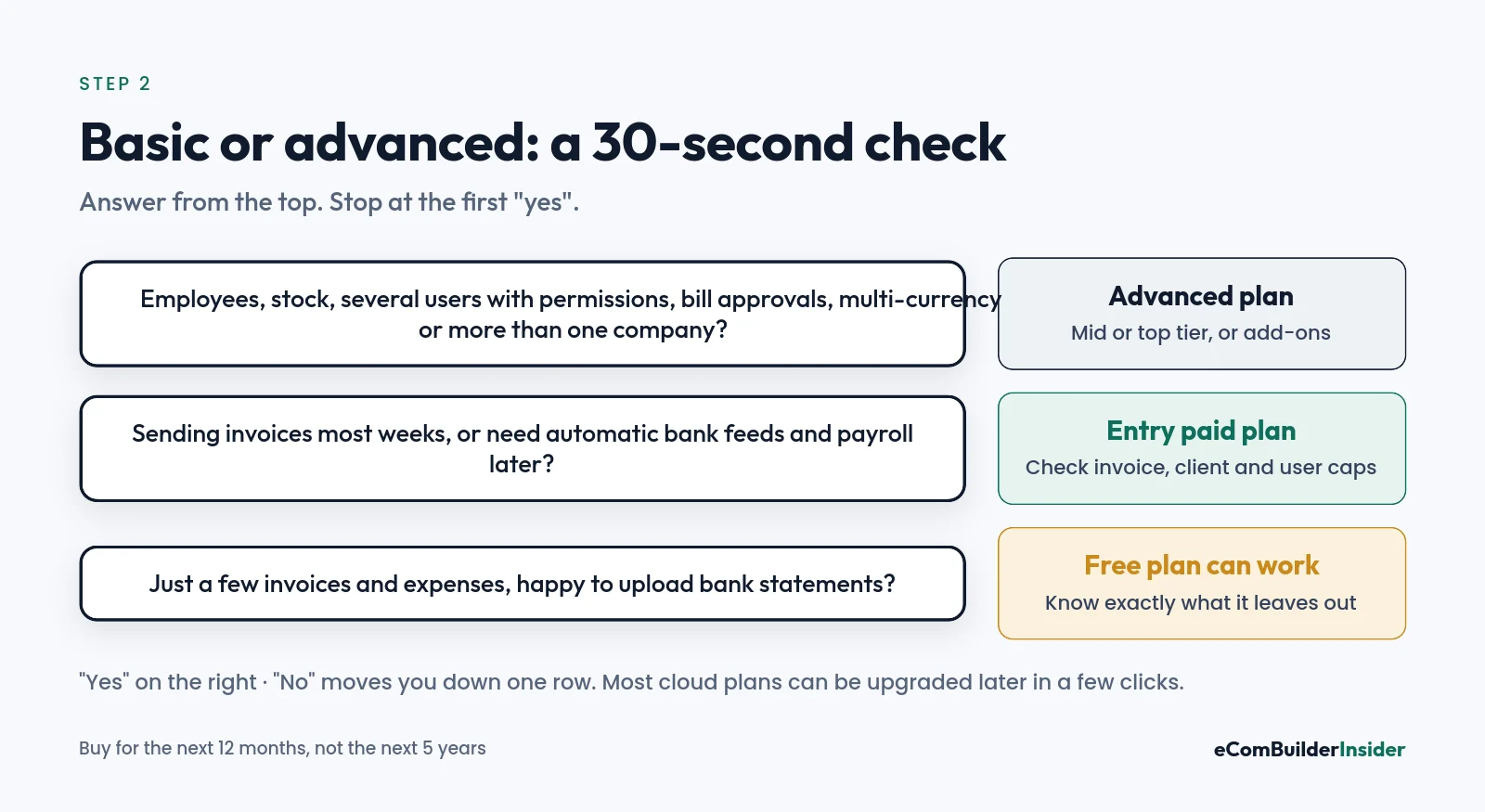
Most small businesses fall into one of two camps, and knowing yours stops you overpaying.
Basic suits freelancers, consultants and small service businesses: you send invoices, track expenses, connect a bank and need clean reports at tax time.
Advanced starts to matter once you have employees, stock, several users with different permissions, bills that need approval, projects to cost, more than one currency, or more than one company.
| If this sounds like you | Look at | Start here |
|---|---|---|
| Solo freelancer, mostly invoices and expenses | A free plan or the cheapest paid plan | Best for freelancers |
| Small service business, 1–3 people | An entry or mid plan with full bank feeds | Best for small business |
| Selling products online | A plan with inventory and store integrations | Best for ecommerce |
| Trades, jobs and project costing | A plan with projects and job costing | Best for contractors |
| Tight budget, very simple books | Free plans (and their limits) | Best free software |
Here’s the reassuring bit: most cloud platforms let you upgrade a plan in a couple of clicks. So if your business is simple today, buy for today. The one exception is a second company, which often needs a separate subscription, so check that before you buy.
Free tool · 4 quick steps
Not sure which one fits? Try my free Accounting Software Finder
Pick your country, business type and must-have features (budget and preferences are optional). You get a ranked shortlist with a score out of 100 and a plain-English reason for every match, and anything that misses a must-have is flagged.
Step 3: Check the Core Features You’ll Use Every Week
There are hundreds of features on every sales page. You’ll use about six of them every week, so test those properly and ignore the rest.
Invoicing and getting paid
If you bill customers, this is where you’ll spend most of your time. Check that you can:
- Save your products and services so an invoice takes a minute, not ten.
- Set up recurring invoices for monthly clients.
- See whether an invoice was sent, viewed and paid.
- Let customers pay online by card or bank transfer (the payment processor charges its own fees).
- Send automatic reminders for overdue invoices, so you don’t have to chase people yourself.
- Add your logo, payment terms and any tax details your country requires.
If you mainly bill for your time, my FreshBooks for freelancers guide walks through that workflow in detail.
Expenses and receipts
You need to see where money goes as clearly as where it comes from. Look for bank-imported expenses, simple categories, receipt capture from your phone, and the option to rebill costs to a client.
Receipt capture sounds minor. It isn’t. A receipt attached to the transaction beats digging through email when your accountant (or the tax office) asks for proof.
Bank feeds and bank reconciliation
If I could only test one thing, it would be this.
A bank feed pulls your transactions into the software automatically. Bank reconciliation is you checking that each one is matched to the right invoice, bill or category.
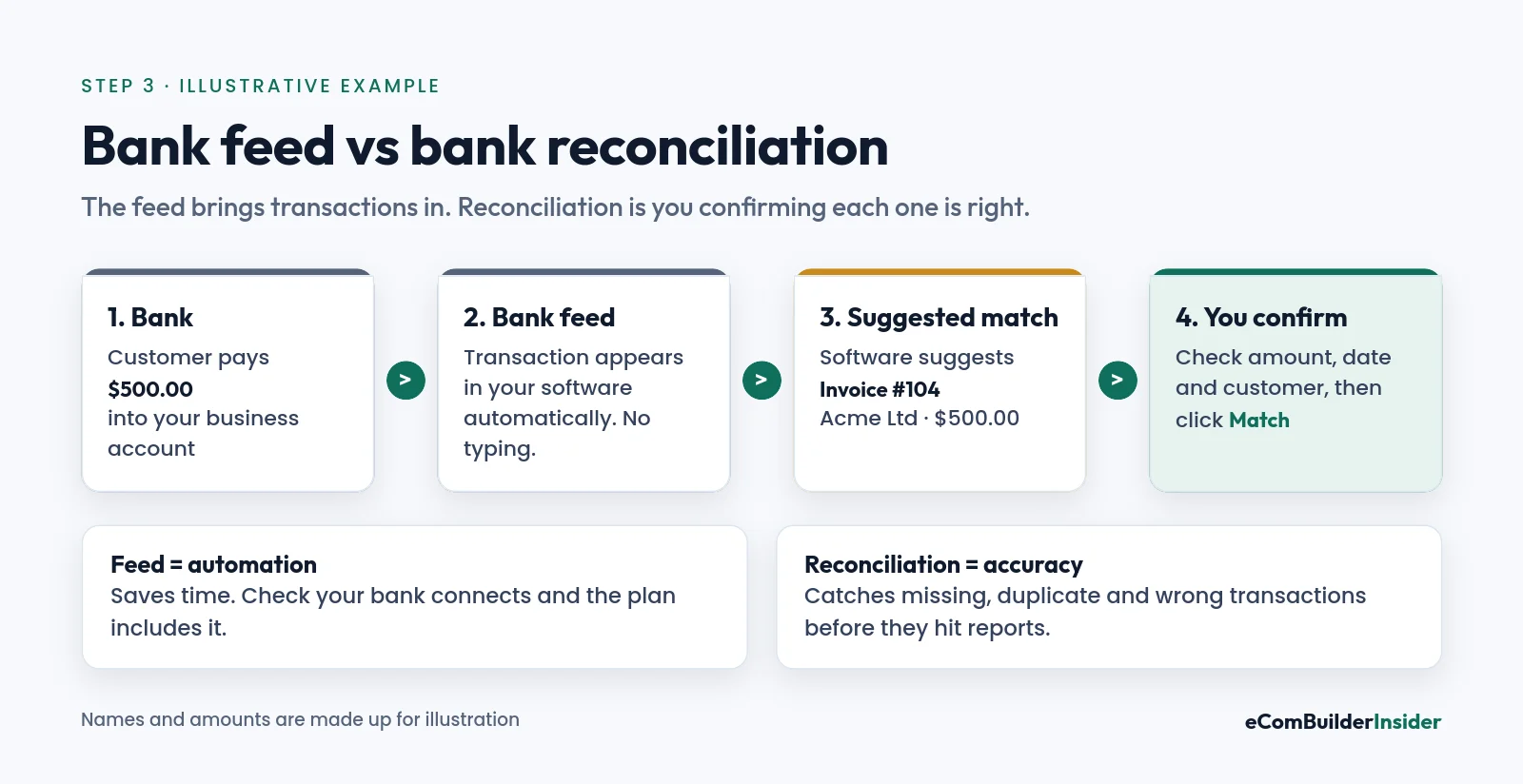
So a $500 deposit arrives, the software suggests it matches invoice #104, you check the amount and confirm. Done. Regular costs, like a monthly software subscription, can be handled by a rule you review.
Two things to check for your shortlist:
- Does your actual bank connect? Support varies by country and bank.
- Are automatic bank feeds included in the plan you’re looking at? For example, Wave’s pricing page lists automatic bank imports on Pro, while Starter users enter or upload transactions themselves.
Bills and accounts payable
Accounts payable is just money you owe suppliers. A bills feature shows what you owe, to whom, and when it’s due, and some plans let you pay straight from the software.
If you only pay a handful of bills a month, you don’t need much. If several people raise and approve bills, look for approval workflows, which are often a higher-plan feature. On QuickBooks Online’s US pricing page, for instance, bill approval workflows are listed only on Advanced.
The reports your accountant will ask for
| Report | What it tells you |
|---|---|
| Profit and loss | Whether you made or lost money over a period |
| Balance sheet | What the business owns and owes on a given date |
| Cash flow statement | Where cash actually came from and went (profit and cash are not the same thing) |
| Accounts receivable ageing | Who owes you money and how late they are |
| Accounts payable ageing | Who you owe and when it falls due |
| General ledger | Every transaction by account; your accountant lives in this one |
Most major platforms offer these, but not always on every plan. A dashboard cash forecast isn’t the same as a cash flow statement, so ask your accountant which ones they need and check the plan includes them.
AI features: nice to have, not a reason to buy
Every platform now promotes AI that categorises transactions, suggests bank matches or drafts reminders. Useful? Sometimes. But treat it as a time-saver, not a deciding factor.
During a trial, run 20 or so real transactions through it, see how often the suggestions are right, and make sure nothing lands in your books without you reviewing it.
Step 4: Read the Small Print on Plan Limits
This is the step most people skip, and it’s the one that catches them out.
Entry plans are cheap because they’re capped. The caps are different on every platform, so two plans at a similar price can behave very differently once you’re busy.
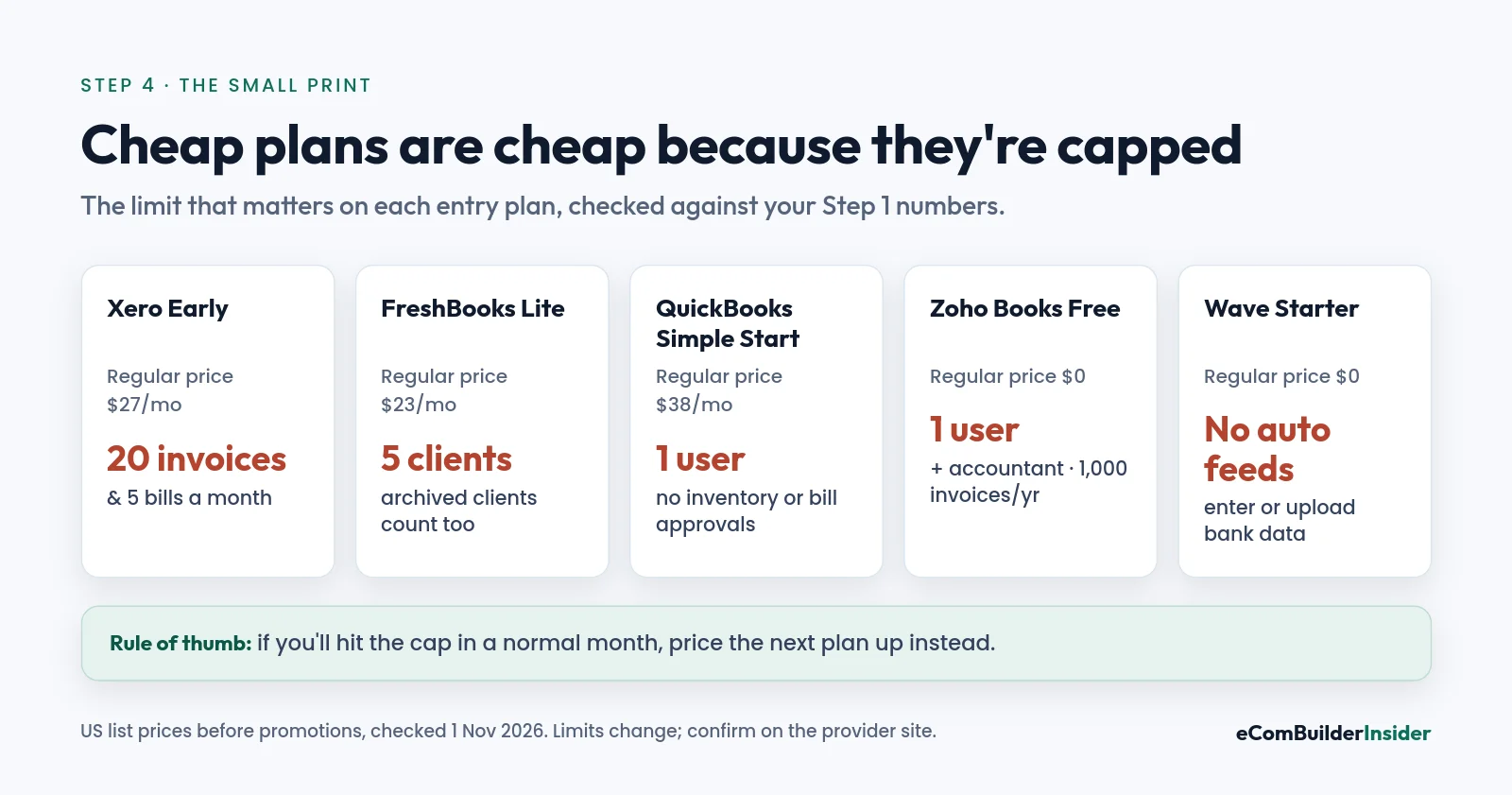
| Plan (US) | Regular price | The limit to watch |
|---|---|---|
| Xero Early | $27/mo | 20 invoices and 5 bills a month |
| FreshBooks Lite | $23/mo | 5 billable clients (archived clients count) |
| QuickBooks Simple Start | $38/mo | 1 user; no inventory or bill approvals |
| Zoho Books Free | $0 | 1 user plus your accountant; 1,000 invoices a year |
| Wave Starter | $0 | No automatic bank imports (manual or upload) |
Drawn from the table above. Lowest price highlighted.
None of these are bad plans. They’re just built for a certain size of business. If your must-have list from Step 1 says 30 invoices a month or three users, you already know which ones to skip.
For full plan-by-plan breakdowns, see my guides to Xero pricing, QuickBooks pricing, FreshBooks pricing and Zoho Books pricing.
Step 5: Decide Whether Payroll Belongs Inside Your Accounting Software
The moment you hire your first employee, payroll stops being optional.
Paying someone is the easy part. Getting the deductions, filings and deadlines right is where it gets serious. So ask three questions:
- How many people do I pay, and where are they? Payroll rules depend on the country, and in the US, the state.
- Does it file the payroll taxes, or just calculate them? Those are very different services.
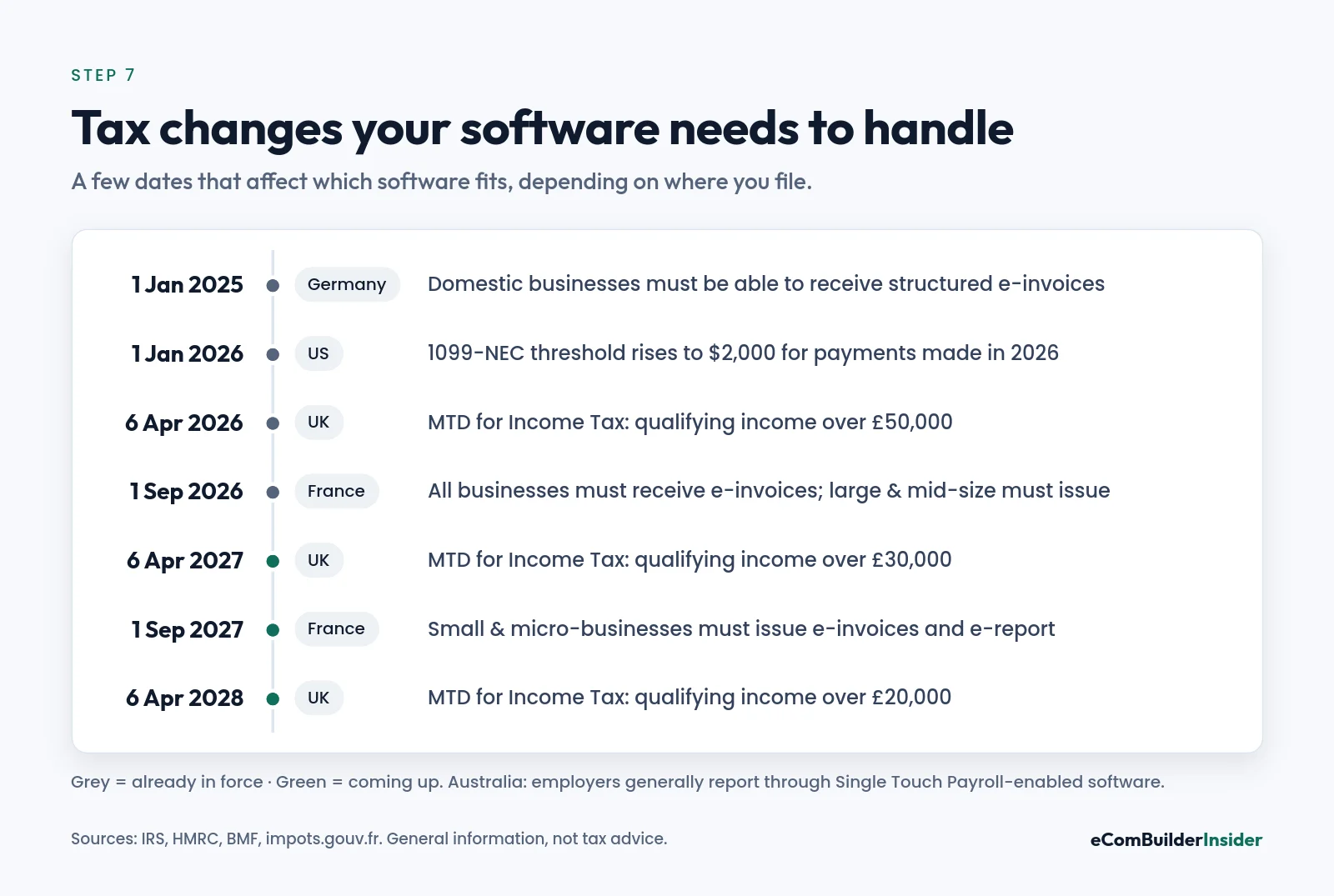
- Do I pay contractors? In the US, the IRS reporting threshold for Form 1099-NEC is $2,000 for payments made in 2026, up from $600 before 2026. Backup withholding is reported whatever the amount.
Most accounting platforms either include payroll as a paid add-on or connect to a separate payroll provider. Here’s what the add-ons cost on three US platforms:
| Platform (US) | Payroll add-on price | Worth knowing |
|---|---|---|
| Xero Payroll (powered by Gusto) | $36/mo + $6 per person | On top of the accounting plan |
| FreshBooks Payroll | $40/mo + $6 per person | Available on all plans |
| Wave Payroll | $40/mo + $6 per employee or contractor | Tax filing service excludes 1099 filings |
Drawn from the table above. Lowest price highlighted.
Outside the US, check the local offer rather than relying on US prices. In the UK, payroll may be included or charged extra depending on the product and plan. In Australia, most employers report through Single Touch Payroll-enabled software.
Already happy with a payroll provider? Then you don’t need payroll inside your accounting software. You just need the two to connect, so wages and payroll taxes land in your books without retyping.
Step 6: Decide How Much Inventory Tracking You Need
If you sell services, you can probably skip this step. Consultants, designers, agencies and many trades businesses rarely need stock control.
If you sell physical products, though, inventory matters, because it’s how you get a true cost of goods sold (COGS) and a real gross profit figure. Your accountant can confirm the right method for you.
| What you need | Where it typically starts (US) |
|---|---|
| No stock at all | Any plan; skip inventory features |
| Basic quantity tracking and COGS | QuickBooks Online Plus; Zoho Books Professional; Xero (up to 4,000 tracked items) |
| Shopify/Amazon sync, reorder points, purchase orders | Xero Inventory Plus add-on (not on Early), or a dedicated inventory app |
| Several warehouses, serial or batch numbers | Zoho Books Elite, or dedicated inventory software |
If you have several warehouses, manufacture products or sell across lots of marketplaces, a dedicated inventory app that feeds your accounting software usually works better than squeezing it all into one tool. My accounting software guide for ecommerce sellers goes deeper here.
Step 7: Make Sure It Handles Tax Where You Are
This is where “works brilliantly” in one country can mean “doesn’t fit” in another. So check the country you actually file in, not just a flag on the website.
United States
There’s no federal sales tax. States (and many local areas) set their own, so if you sell into several states, you may need a dedicated sales tax tool alongside your accounting software. Payroll has federal and state rules too.
United Kingdom
VAT-registered businesses generally keep digital records and file VAT returns through compatible software under Making Tax Digital. HMRC’s Making Tax Digital for Income Tax guidance sets the start dates for sole traders and landlords:
- 6 April 2026: qualifying income over £50,000 in 2024–25.
- 6 April 2027: qualifying income over £30,000 in 2025–26.
- 6 April 2028: qualifying income over £20,000 in 2026–27.
Qualifying income isn’t the same as profit, and exemptions exist, so check your own position.
Australia
Make sure the software handles GST reporting and Single Touch Payroll if you have employees.
Europe
E-invoicing is spreading. In Germany, the finance ministry explains that domestic businesses generally need to be able to receive structured e-invoices from 1 January 2025 (a normal PDF doesn’t count). In France, the tax authority confirms every business must be able to receive e-invoices from 1 September 2026; small and micro-businesses have until 1 September 2027 to issue them.
Before you buy, ask
- Does it calculate the right tax on my sales?
- Can it produce the tax reports I file, or file them directly where that is allowed?
- Does it handle payroll taxes in my country or state?
- Does it work with my accountant’s tax software?
Your tax position depends on your situation, so if you’re unsure, check with your tax authority or your accountant.
Step 8: Check the Apps It Has to Talk To
Your accounting software shouldn’t live on an island. Every tool that connects properly is one less thing you type in by hand.
But don’t be dazzled by “1,000+ integrations”. The only number that matters is whether your three to five essential apps connect.
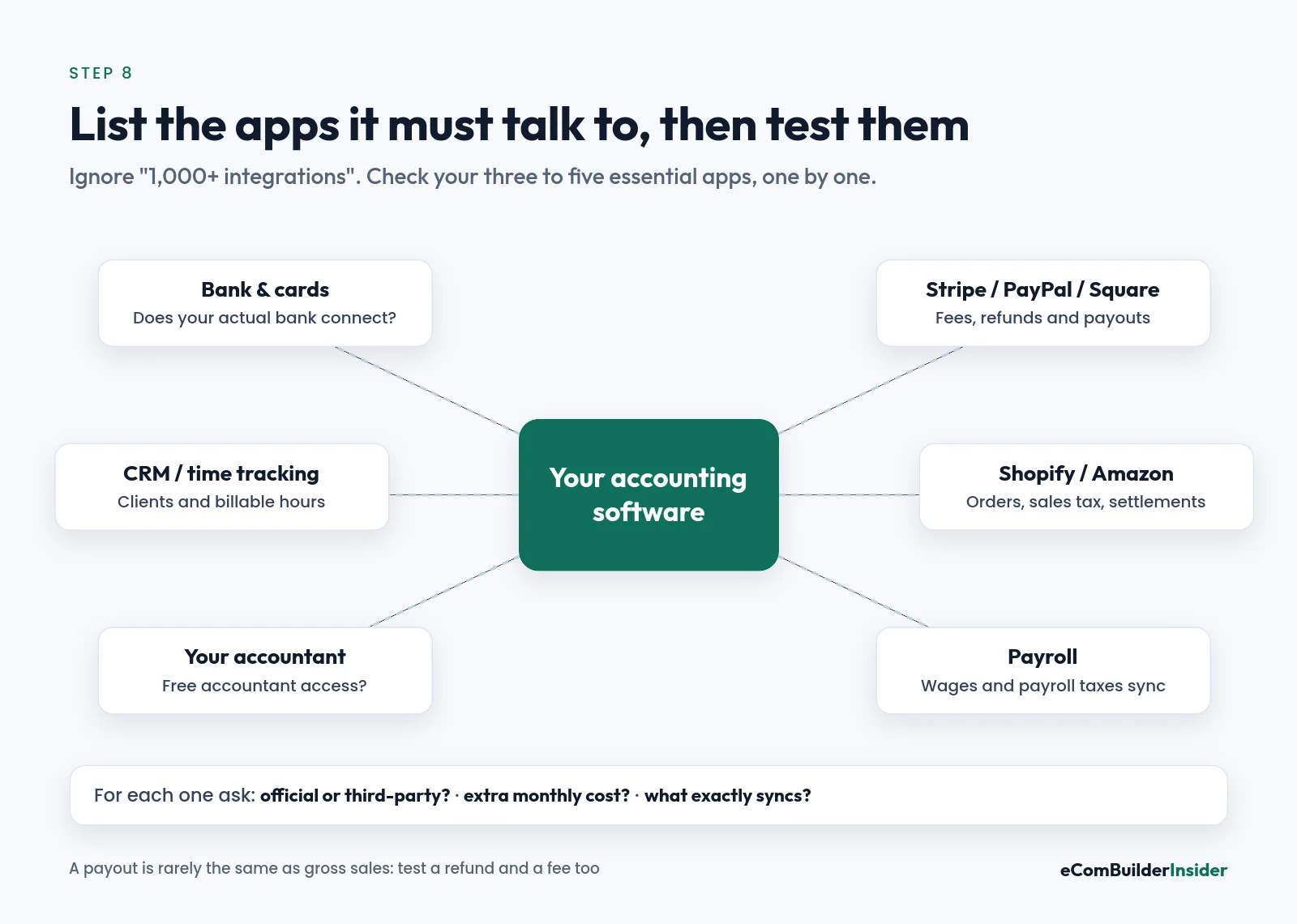
For each must-have app, check three things: is the integration official or third-party, does it cost extra, and what exactly does it send across?
Ecommerce sellers, test the awkward stuff, not just a normal sale: a refund, a processing fee, a sales tax line and a payout. A Stripe or Shopify payout is rarely the same as your gross sales, and that gap is where most reconciliation headaches start. See how Xero handles ecommerce for a worked example.
Step 9: Work Out the Real Yearly Cost
Now shortlist the two or three platforms that passed your must-haves, and compare what you’ll actually pay over a year. Not the promo price. The normal one.
Your real cost can include:
- The accounting plan after any introductory discount ends
- Payroll base fees plus a charge per person
- Extra users, or a second subscription for a second company
- Inventory, receipt capture or reporting add-ons
- Paid integrations and their own subscriptions
- Payment processing fees on the money you collect
- Setup, data migration and bookkeeping help
Here’s a simple worked example. A US service business paying two employees and one contractor, using regular list prices with no promotions:
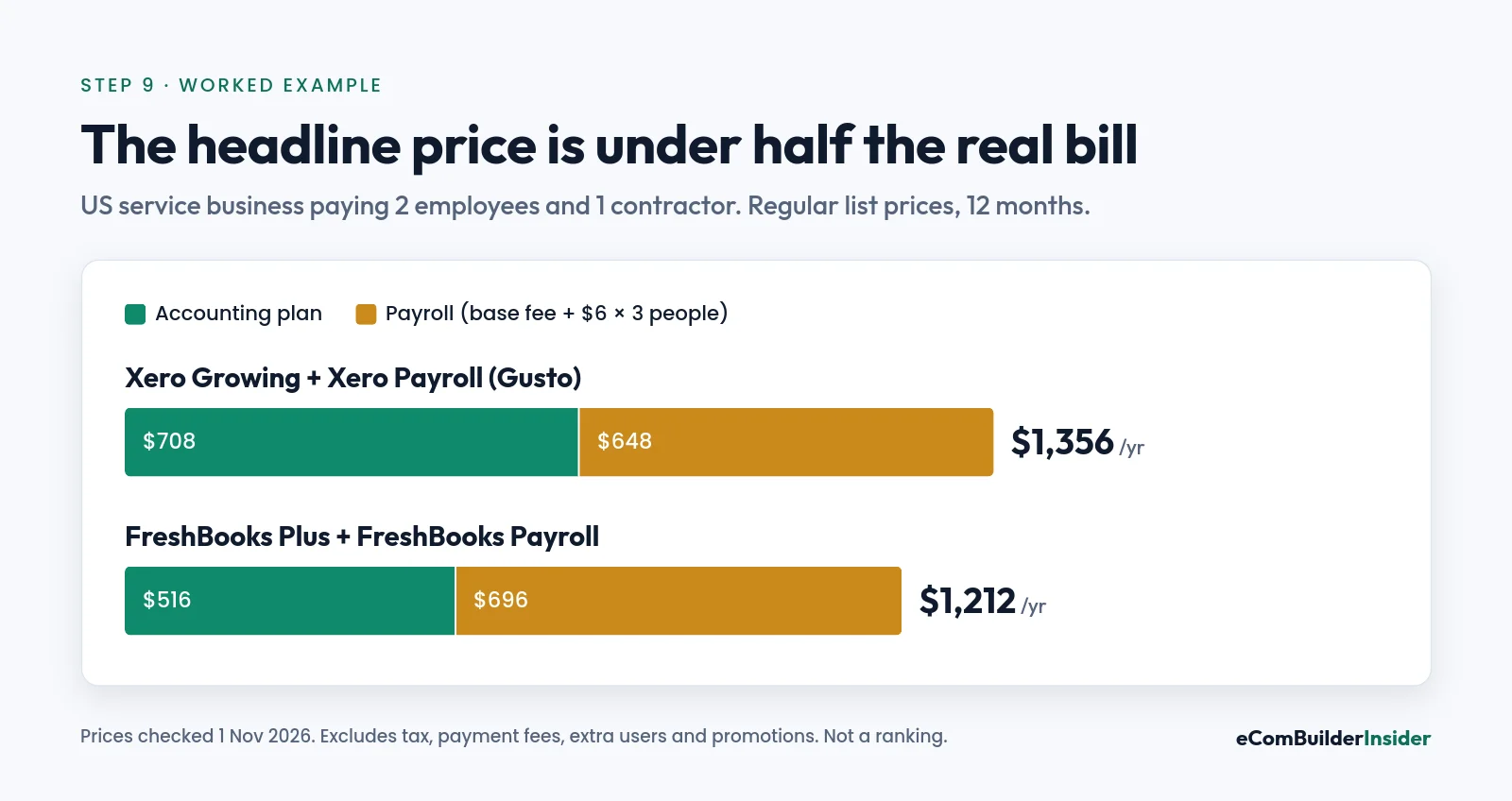
| Setup | Plan only, per year | Plan + payroll, per year |
|---|---|---|
| Xero Growing + Xero Payroll (Gusto) | $708 | $1,356 |
| FreshBooks Plus + FreshBooks Payroll | $516 | $1,212 |
This isn’t a ranking, as the two do different jobs. The point is that the headline price can be less than half of what you’ll really spend. For context, Software Advice’s buyer research puts the median small-business budget at around $200 a month, with nearly half of buyers aiming for under $100.
Also check whether the price you’re quoted assumes annual billing, and whether sales tax or VAT is added on top. My QuickBooks alternatives guide is a good place to compare value across platforms.
Step 10: Test-Drive Your Shortlist (Including the Way Out)
Screenshots and demos all look lovely. The only way to know if you’ll be happy using it every month is to use it.
Most platforms offer a free trial or a free plan. Use it for the same five jobs on each of your shortlisted options, and score them:
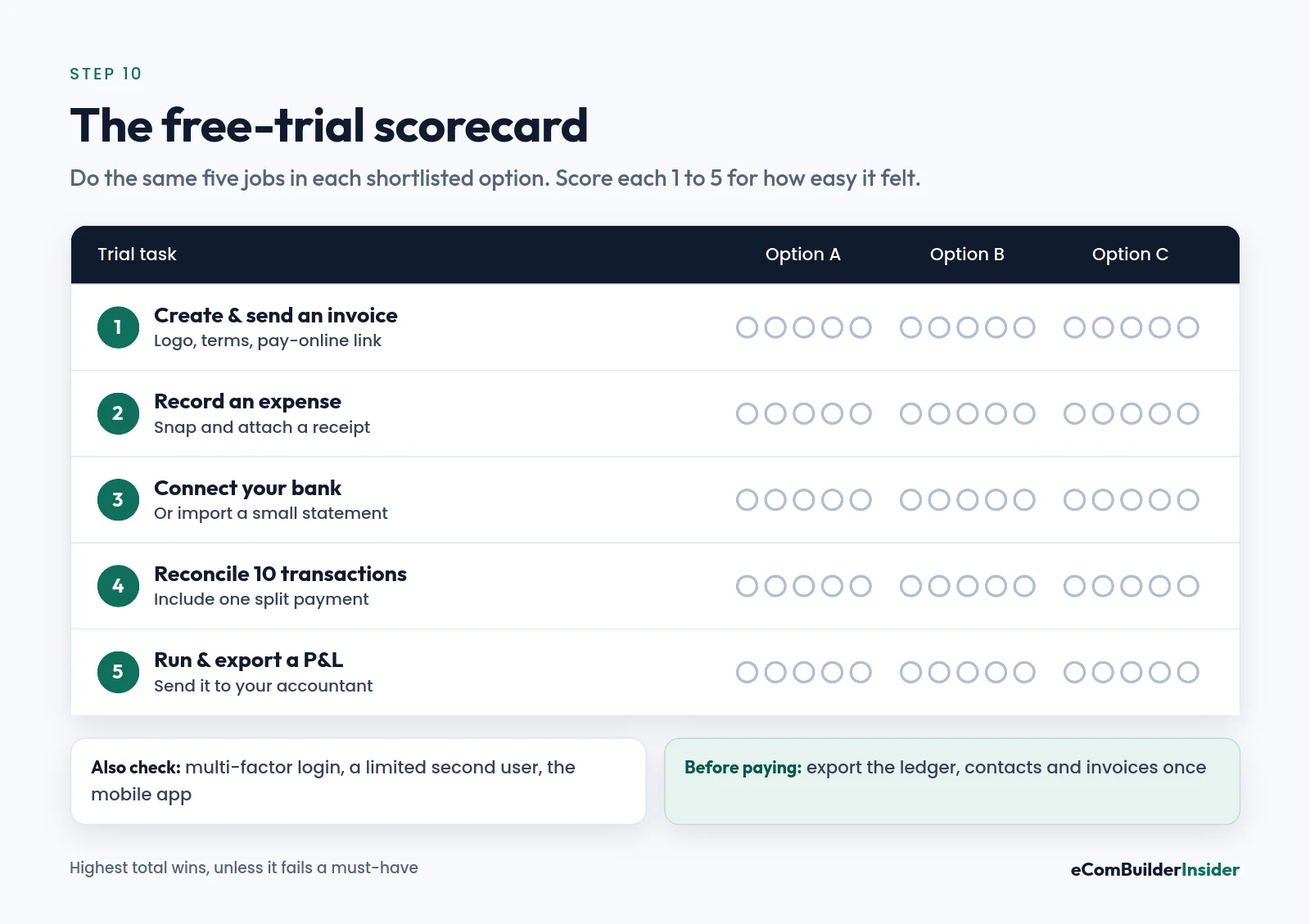
- Create and send a real-looking invoice with your logo and payment link.
- Record an expense and attach a receipt from your phone.
- Connect your bank (or import a small statement) and see what comes in.
- Reconcile ten transactions, including one that needs splitting.
- Run and export a profit and loss report, then send it to your accountant for a sanity check.
While you’re in there, switch on multi-factor authentication, create a second user with limited permissions, and open the mobile app.
Then check the exit before you commit. It feels backwards, but it’s the cheapest moment to find out:
- Can you export the general ledger, contacts, invoices and reports, not just a basic CSV?
- What happens to receipt attachments and your full transaction history if you leave?
- Can you keep read-only access to old records, and for how long?
When you do switch, agree a clean start date with your accountant (often a month, quarter or year end), reconcile the opening balances, and keep the old system until you’ve checked everything came across. More on that in my cloud vs desktop accounting guide.
Then ask yourself one simple question: could I happily use this every month? If the answer is yes, you’ve found it.
Common Mistakes When Choosing Accounting Software
Buying for the business you might have in five years. You end up paying for advanced features you never touch. Buy for the next 12 months; upgrading is usually quick.
Comparing promo prices. A deal like 90% off for six months is lovely, but it ends. Compare the regular price over a full year, plus payroll and add-ons.
Not testing your own bank. “Connects to thousands of banks” doesn’t mean yours. Connect it during the trial.
Missing the plan cap. Invoice limits, bill limits, client limits and user limits are where cheap plans get expensive. Check them against your Step 1 numbers.
Leaving your accountant out. Five minutes of their time on your shortlist can save hours of clean-up at year-end.
Trusting the integration logo. An app being “supported” doesn’t tell you how it handles refunds, fees and payouts. Test those.
Your Final Checklist Before You Commit
Before you enter a card number, make sure you can say yes to all five:
- It handles your country’s (and state’s) tax and reporting requirements.
- Your bank and essential apps connect reliably, and you’ve tested them.
- The plan’s limits cover your invoices, bills, clients, users, payroll and stock.
- You can do the everyday jobs comfortably, and export everything if you leave.
- The normal yearly cost, with add-ons, fits your budget after any discount ends.
If two platforms pass, let your accountant break the tie, or simply pick the one that felt easier during the trial. Both are good answers.
Frequently Asked Questions
What is the most important feature in accounting software?
For most small businesses, reliable bank feeds with easy reconciliation. If your transactions don’t come in cleanly and match properly, every report built on top of them is wrong.
How much should a small business spend on accounting software?
Solo businesses can often manage on a free plan or one under $40 a month. Once you add payroll, more users or inventory, $100 to $200 a month is common. Always compare the regular yearly price, not the promo.
Is free accounting software good enough?
It can be, if your needs are simple. Free plans usually limit users, invoice volume or automatic bank feeds, so check those caps. My guide to the best free accounting software explains what’s actually free.
Should I choose the same software as my accountant?
It isn’t essential, as most accountants work in several platforms, but it helps. They’ll often be faster (and sometimes cheaper) to work with if they already know the system.
Can I switch accounting software later?
Yes, but it takes planning. Switch at a month, quarter or year end, export everything from the old system first, and keep access to your old records.
Do I need double-entry accounting software?
Most mainstream cloud platforms already use double-entry bookkeeping behind the scenes, so you get it automatically. You don’t need to understand the debits and credits to use the everyday features.
Is cloud or desktop accounting software better?
For most small businesses, cloud software is easier because bank feeds, app connections, updates and accountant access all work online. Desktop can still suit businesses with specific industry or offline needs.
What to Do Next
You’ve got your needs list and your checklist. The next step is to see which platforms actually pass it.
Start with my comparison of the best accounting software for small business. It scores each option on the same things this guide covers: price, bank feeds, invoicing, reporting and support.
Free tool · 4 quick steps
Not sure which one fits? Try my free Accounting Software Finder
Pick your country, business type and must-have features (budget and preferences are optional). You get a ranked shortlist with a score out of 100 and a plain-English reason for every match, and anything that misses a must-have is flagged.
And if you want to keep exploring, every buying guide, review and comparison lives in the Accounting Software Resource Center.